What is a git worktree: how it works and when to use one
What a git worktree is, explained in depth: what git writes to disk, what it shares with the repository, its commands, its limits and when to use one.
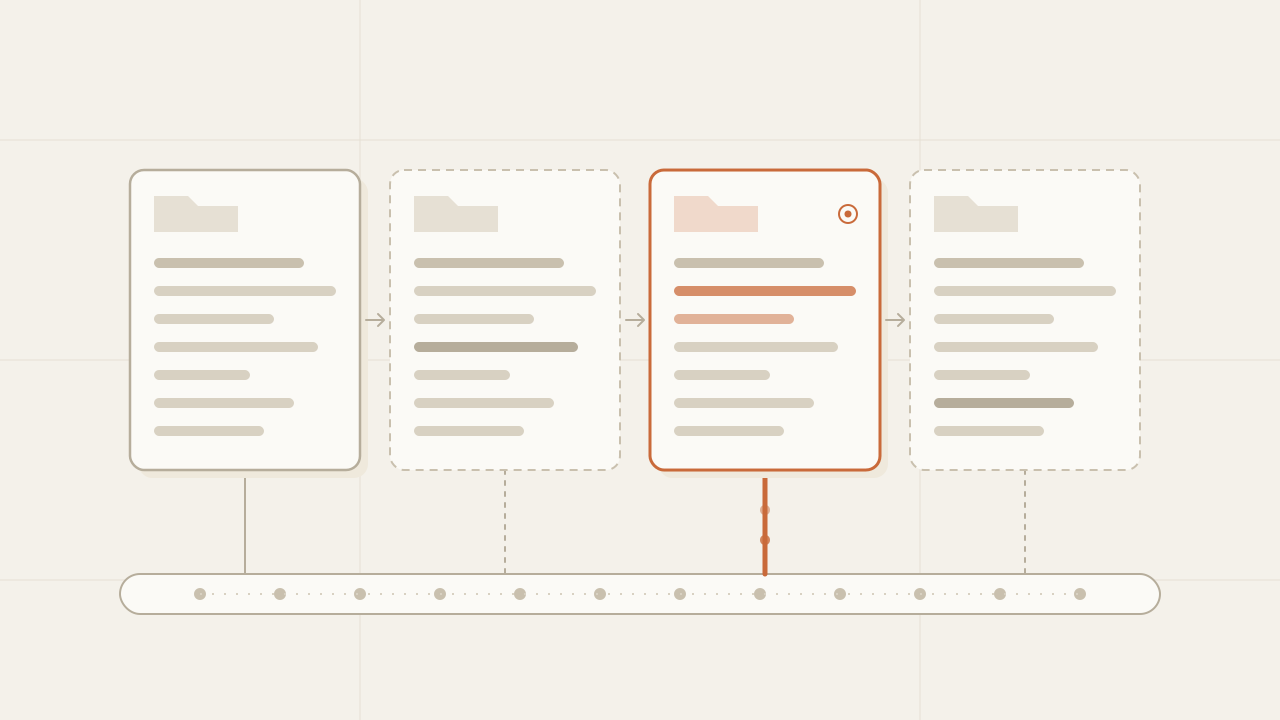
A git worktree is an additional working directory of the same repository: a second folder with its own files, its own checked-out branch and its own staging area, which shares the history, the branches and the configuration with the original folder. With it you can have main open in one folder and feature/login in another at the same time, without cloning the repository twice and without running stash every time you switch tasks. The command has existed since git 2.5 (2015), but it’s easy to overlook because it only makes sense once you know how a repository is built inside: what is shared between folders and what isn’t.
TL;DR
- A git worktree is another working folder of the same repository: it has its own
HEAD, index and files, but shares the commits, branches, configuration and hooks with the main worktree. - A linked git worktree has no
.gitfolder, only a one-line.gitfile pointing to.git/worktrees/<name>, where git keeps what belongs to that worktree alone. That's why creating one is fast and doesn't duplicate the history. - A git worktree has two limits worth knowing: a branch can be checked out in only one worktree at a time, and it doesn't copy what git doesn't track (
node_modules,.env, builds).
In this article:
- Fundamentals — What a git worktree is · The three parts of a repository · Worktree, clone, branch or stash · When to use it
- How it works — What git writes to disk · What is per-worktree and what is shared · A full walkthrough · One branch, one worktree
- Usage — The commands · What it doesn’t copy · From a script · Cleanup and common errors
What is a git worktree
A git worktree is an additional working directory of the same repository, with its own checked-out branch, its own HEAD and its own index; the commits, branches and configuration are shared with the main worktree.
The problem it solves is concrete. A freshly cloned repository has a single working folder, and only one branch can be checked out in it at a time. If you’re halfway through feature/payments and someone asks you to look at a bug on main, you have three options, and none is comfortable: make a temporary commit, put your changes away with git stash, or clone the repository again into another folder. The first two force you to interrupt what you were doing; the third duplicates the whole history and creates a separate repository that can’t see your local branches.
git worktree adds a fourth option: a second working folder in the same repository. In that folder you open main, fix the bug and commit, while feature/payments stays untouched in the original folder, half-finished changes included. Both folders read from and write to the same git database, so the commit you made in one shows up in the other immediately.
To understand why that works, and what exactly is shared, you need to separate the parts of a repository.
The three parts of a git repository
A git repository has three parts: the object database (the history), the references (the branches and tags that point into that history) and the working state (the checked-out branch, the index and the files in the folder).
| Part | What it holds | Where it lives |
|---|---|---|
| The object database | Every commit, tree and file content in the history | .git/objects |
| The references | The names that point to commits: branches (refs/heads/main), tags, remote branches | .git/refs and .git/packed-refs |
| The working state | Which branch is checked out (HEAD), what you staged for the next commit (the index) and the files you see in the folder | .git/HEAD, .git/index and the working directory |
The first two parts are the repository itself: the history and the names that point into it. The third is your position within that history: which branch you’re on, which files are checked out and which changes you’ve staged. A normal repository has one copy of each part, which is why you can only be in one place at a time.
A worktree duplicates only the third part. Each worktree has its own HEAD, its own index and its own folder of files, but they all share the object database and the references.
Git distinguishes two kinds of worktree. The folder where you cloned or initialized the repository, the one holding the real .git folder, is the main worktree. The ones you add with git worktree add are linked worktrees. Day to day they behave the same; the difference is that the main worktree can’t be removed or moved with git worktree, because that’s where the repository lives.
Worktree, clone, branch or stash: how they differ
A worktree differs from a clone, a checkout and a stash in which part it touches: it creates a second working state without duplicating the history or the references. The other three options either replace the working state or duplicate the entire repository:
Branch + checkout | stash | Fresh clone | Worktree | |
|---|---|---|---|---|
| What it does to the working state | Replaces it | Saves it and clears it | Creates another, in another repository | Creates another, in the same repository |
| Several branches open at once | No | No | Yes | Yes |
| Duplicates the history | No | No | Yes | No |
A commit is visible in the other without push/fetch | — | — | No | Yes |
| Sees your local branches | — | — | No, only the ones you pushed | Yes, all of them |
| Cost to create | Almost none | Almost none | Copies the history (a local clone uses hardlinks, but it’s still another repository) | Only writes the branch’s files |
The branch and the stash work on your single copy of the working state: they replace it or empty it. The clone creates a new working state, but inside an independent repository, with its own object database and its own references; to move a commit from one to the other you need push and fetch. The worktree creates a new working state inside the same repository, so you get the clone’s separate folders without giving up the shared history and branches.
When to use a worktree
A worktree is the right tool when you need two live working states at once on the same repository. The most common cases:
| Situation | Why a worktree and not something else |
|---|---|
| An urgent hotfix in the middle of a feature | You don’t touch your folder or your half-done changes; you fix it in another and come back |
| Reviewing a pull request | You open the PR’s branch in its own folder, run it and test it without losing your context |
| Comparing two versions | You open the old tag with --detach and run both at the same time |
| A long test suite or build | You run it in one worktree while you keep coding in another |
| Several coding agents in parallel | Each agent works in its own folder and branch without overwriting the others’ files |
The last case is the newest one. Tools like Orca create one worktree per agent to run several on the same task and keep the best result; in the agent inside a real repo I show how to isolate an agent’s task in a worktree and deliver it as a PR. In both cases the mechanism is the one this post describes.
And it’s the wrong tool when the context switch is short and you have no half-done changes (a checkout is enough), or when you need to isolate the whole repository, not just the working state: for example, to try something that rewrites branches or the configuration. There a separate clone is safer, because a worktree shares all of that.
What git writes to disk when you create a worktree
When you create a worktree, git writes two things: an admin folder at .git/worktrees/<name> with the worktree’s own state, and, in the new folder, a one-line .git file pointing to that admin folder. Take a repository at ~/app with a single commit on main:
cd ~/app
git worktree add -b feature/login ../app-login
# Preparing worktree (new branch 'feature/login')
# HEAD is now at 0e4f78d first commit
That command does four things:
-
Creates the branch —
refs/heads/feature/loginIt points to the current commit, because we didn’t give it another starting point.
-
Creates the admin folder —
.git/worktrees/app-login/A folder inside the main
.gitwith the new worktree’s own state. -
Creates the working folder —
../app-login/With a
.gitfile that points to the admin folder. -
Checks out the branch —
feature/loginWrites that branch’s files into the new folder and populates its index.
The interesting part is in steps 2 and 3. The new folder has no .git folder, only a one-line .git file:
$ cat ../app-login/.git
gitdir: /home/ramon/app/.git/worktrees/app-login
When you run any git command inside app-login, git looks for .git, finds that file and follows the path. That’s how it knows the folder belongs to the repository at ~/app. On the other side, the admin folder holds only a few files:
$ ls .git/worktrees/app-login
HEAD ORIG_HEAD commondir gitdir index logs| File | What it stores |
|---|---|
HEAD | That worktree’s checked-out branch: ref: refs/heads/feature/login |
index | That worktree’s own index (staging area) |
ORIG_HEAD | The commit before the last operation that moved HEAD (here, left by the internal checkout in add) |
logs/ | The reflog of its HEAD: where it pointed and when |
commondir | The path to the shared repository, relative: ../.. |
gitdir | The path back to the working folder’s .git file |
It’s a two-way link: the working folder knows where its admin folder is (the .git file), and the admin folder knows where its working folder is (the gitdir file). Thanks to the second one, git worktree list can show every folder and git worktree prune can detect the ones that no longer exist.
Git lets you see that split directly. From inside the linked worktree:
cd ../app-login

# Where this worktree's own state lives
git rev-parse --git-dir
# /home/ramon/app/.git/worktrees/app-login

# Where the shared repository lives
git rev-parse --git-common-dir
# /home/ramon/app/.git
Notice what is not in the admin folder: no objects, no refs/heads, no config. All of that is read from --git-common-dir. That’s why creating a worktree takes only as long as writing out the branch’s files: the history already exists and isn’t copied.
What belongs to each worktree and what is shared
Each worktree keeps for itself what makes up its working state, and shares with the others everything that makes up the repository:
| Per worktree | Shared by all |
|---|---|
HEAD: which branch or commit is checked out | The objects: commits, trees, contents (.git/objects) |
| The index: what you have staged | Branches and tags (refs/heads, refs/tags) |
The reflog of HEAD | The configuration (.git/config) |
Operations in progress: a rebase, a merge, a cherry-pick | The hooks (.git/hooks) |
The state of a git bisect (refs/bisect) | The stash (refs/stash) |
| The files in the working directory | Remotes and remote branches (refs/remotes) |
That table explains several behaviors that surprise people the first time:
- A
fetchin one worktree serves them all. Remote branches are shared references, so after agit fetchin any folder, every folder sees the updatedorigin/main. - Deleting a branch deletes it for everyone. There are no “branches of this worktree”: there are branches of the repository, and each worktree has one of them checked out.
- There is only one
stash. Agit stashmade in one worktree shows up in the others’git stash listand can be applied from any of them. - Hooks and configuration are the same. Every worktree runs the same
pre-commithook, and a change to.git/configaffects all of them. If you need different configuration in one, git allows it: enableextensions.worktreeConfigand usegit config --worktree. - You can run a
rebasein one worktree while another is in the middle of amerge. Each one has its own state for operations in progress.
A worktree isolates the working state, not the repository. Half-edited files, the staging area and the checked-out branch belong to each folder; commits, branches, configuration and hooks belong to all of them.
A full walkthrough: two branches open at once
Putting it all together, here’s the whole flow end to end. You’re in ~/app, on main, and you need to work on login without touching your folder:
# 1. Create the worktree with its branch
git worktree add -b feature/login ../app-login

# 2. Work in it like in any repository
cd ../app-login
echo "login" > login.txt
git add login.txt
git commit -m "Add login"

# 3. Go back to the original folder: the commit is already there
cd ../app
git log --oneline --all
# b31849a (feature/login) Add login
# 0e4f78d (HEAD -> main) first commit

# 4. List both worktrees and each one's branch
git worktree list
# /home/ramon/app        0e4f78d [main]
# /home/ramon/app-login  b31849a [feature/login]
Step 3 needed no push and no fetch: the commit was written to the shared object database and the feature/login branch was updated in the shared references, so ~/app sees it as soon as it exists. What ~/app does not see are the files: login.txt doesn’t appear in its folder, because that folder is still on main. To integrate the work you do what you’d do with any branch: git merge feature/login from main, or a pull request.
When you’re done, you remove the worktree:
git worktree remove ../app-login
git branch -d feature/login   # the branch outlives the worktree; delete it once it's merged
The rule: a branch can only be in one worktree
There’s a restriction you’ll hit early: git won’t let the same branch be checked out in two worktrees at once. If feature/login is already open in ../app-login and you try to open it in another folder, or checkout it in the main one, it fails:
$ git checkout feature/login
fatal: 'feature/login' is already used by worktree at '/home/ramon/app-login'
In older versions of git the same error reads fatal: 'feature/login' is already checked out at '…'.
The reason lies in the shared parts. The branch is a repository reference, and committing in one folder moves that reference. If another folder had the same branch checked out, its HEAD would suddenly point to a new commit while its files and its index stayed on the old one: an inconsistent state. Git prevents it up front. For the same reason, it won’t let you delete a branch that is checked out in any worktree:
$ git branch -d feature/login
error: cannot delete branch 'feature/login' used by worktree at '/home/ramon/app-login'
You can override the rule with --force, but there’s almost never a good reason to. If you need two folders starting from the same point, create a different branch for each one from the same commit, or use --detach to open a commit without a branch.
The git worktree commands
These are the git worktree commands that cover daily use:
# Create a worktree with a new branch, starting from main
git worktree add -b feature/login ../app-login main

# Create a worktree on a branch that already exists
git worktree add ../app-hotfix hotfix/price

# Open a commit or a tag without a branch (useful to test an old version)
git worktree add --detach ../app-v1 v1.0.0

# List the worktrees with their commit and branch
git worktree list

# The same in a stable format, meant for scripts
git worktree list --porcelain

# Remove a worktree (refuses if it has uncommitted changes)
git worktree remove ../app-login

# Clean up records of worktrees whose folder no longer exists
git worktree prune

# Protect a worktree from prune (for example, if it lives on an external drive)
git worktree lock --reason "external drive" ../app-v1
git worktree unlock ../app-v1

# Move a worktree to another folder without breaking the link
git worktree move ../app-hotfix ../hotfixes/price

# Repair the links if you moved folders by hand
git worktree repair
Three details about add worth knowing:
- If you pass only the path, with no
-band no branch, git creates a new branch named after the last folder:git worktree add ../app-loginleaves a branch calledapp-login. In a repository with conventions (feature/,fix/), always pass-b. - If you pass the name of a remote branch that doesn’t exist locally (
git worktree add ../app-x feature/xwhen onlyorigin/feature/xexists), git creates the local branch tracking the remote one. - The folder works better next to the repository (
../app-login) than inside it. If you create it inside, the main worktree sees it as an untracked folder and you have to add it to.gitignore.
And one about remove: it deletes the folder and the admin folder, but not the branch. The commits stay on the branch, which you can merge or delete later.
A pattern you’ll see often is to combine worktrees with a bare repository (one with no working folder of its own): you clone with git clone --bare <url> app.git and open every branch you need as a worktree, for example git -C app.git worktree add ../main main. That way no branch is “the main one” just because it lives in the repository’s folder; they’re all folders at the same level.
What a worktree doesn’t copy
A new worktree holds exactly what is tracked on the branch. Everything git ignores or never saw stays in the original folder. In a typical project that includes:
- Dependencies (
node_modules,vendor,.venv): you have to install them in each worktree. Package managers with a global cache (thepnpmstore, thenpmorpipcache) cut the time, but every folder needs its own install. - Environment variables (
.env,.env.local): they aren’t in git, so the worktree starts without them. You have to copy them. - Build artifacts (
dist,.next, compilation caches): they start empty, so the first build in each worktree is a full one. - Local editor settings that aren’t tracked.
And there are resources a worktree doesn’t isolate because they aren’t part of the repository:
- Ports: if two worktrees start the dev server on port 3000, the second one fails. Each one needs its own port.
- Databases and local services: two worktrees pointing to the same development database share data, and if they run different migrations they interfere with each other.
- Submodules: the official
git worktreedocumentation warns that submodule support is incomplete. Each worktree needs its owngit submodule update --init, andgit worktree removerefuses to remove a worktree with initialized submodules unless you pass--force.
“Creating a worktree” is almost never just git worktree add: in a real project it also includes the steps to get the app running in that folder.
Creating and listing worktrees from a script
When you create worktrees often, it pays to put those steps in one function: it creates the worktree on a branch, copies the .env from the main one and installs the dependencies. A second function lists the worktrees by reading git worktree list --porcelain, which has a stable format for scripts: one block per worktree, one key value line per field and a blank line between blocks.
// worktrees.ts — create a worktree ready to work in and list the existing ones
import { execFileSync } from "node:child_process";
import { copyFileSync, existsSync } from "node:fs";
import { join } from "node:path";

type Worktree = { path: string; head: string; branch: string | null };

function git(repoDir: string, ...args: string[]): string {
  return execFileSync("git", ["-C", repoDir, ...args], { encoding: "utf8" });
}

export function addWorktree(repoDir: string, branch: string, base = "main"): string {
  // The folder goes next to the repository, named after the branch without slashes.
  const path = join(repoDir, "..", branch.replaceAll("/", "-"));
  git(repoDir, "worktree", "add", "-b", branch, path, base);

  // What git doesn't track doesn't come with the worktree: copy the .env by hand.
  const env = join(repoDir, ".env");
  if (existsSync(env)) copyFileSync(env, join(path, ".env"));

  // Each worktree needs its own dependency install.
  execFileSync("npm", ["install"], { cwd: path, stdio: "inherit" });
  return path;
}

export function listWorktrees(repoDir: string): Worktree[] {
  // --porcelain: one block per worktree, separated by a blank line.
  const blocks = git(repoDir, "worktree", "list", "--porcelain").trim().split("\n\n");
  return blocks.map((block) => {
    const fields = new Map(
      block.split("\n").map((line) => {
        const [key, ...rest] = line.split(" ");
        return [key, rest.join(" ")] as const;
      }),
    );
    return {
      path: fields.get("worktree") ?? "",
      head: fields.get("HEAD") ?? "",
      // A detached worktree has no "branch" line.
      branch: fields.get("branch")?.replace("refs/heads/", "") ?? null,
    };
  });
}
# worktrees.py — create a worktree ready to work in and list the existing ones
import shutil
import subprocess
from dataclasses import dataclass
from pathlib import Path
@dataclass
class Worktree:
path: str
head: str
branch: str | None
def git(repo_dir: str, *args: str) -> str:
return subprocess.check_output(["git", "-C", repo_dir, *args], text=True)
def add_worktree(repo_dir: str, branch: str, base: str = "main") -> str:
# The folder goes next to the repository, named after the branch without slashes.
path = Path(repo_dir).parent / branch.replace("/", "-")
git(repo_dir, "worktree", "add", "-b", branch, str(path), base)
# What git doesn't track doesn't come with the worktree: copy the .env by hand.
env = Path(repo_dir) / ".env"
if env.exists():
shutil.copyfile(env, path / ".env")
# Each worktree needs its own dependency install.
subprocess.run(["npm", "install"], cwd=path, check=True)
return str(path)
def list_worktrees(repo_dir: str) -> list[Worktree]:
# --porcelain: one block per worktree, separated by a blank line.
blocks = git(repo_dir, "worktree", "list", "--porcelain").strip().split("\n\n")
result = []
for block in blocks:
fields = dict((line.split(" ", 1) + [""])[:2] for line in block.splitlines())
branch = fields.get("branch")
result.append(Worktree(
path=fields.get("worktree", ""),
head=fields.get("HEAD", ""),
# A detached worktree has no "branch" line.
branch=branch.removeprefix("refs/heads/") if branch else None,
))
return result<?php
// worktrees.php — create a worktree ready to work in and list the existing ones
function run(string $cwd, string ...$cmd): string {
$parts = implode(" ", array_map("escapeshellarg", $cmd));
exec("cd " . escapeshellarg($cwd) . " && $parts 2>&1", $output, $code);
if ($code !== 0) {
throw new RuntimeException(implode("\n", $output));
}
return implode("\n", $output);
}
function addWorktree(string $repoDir, string $branch, string $base = "main"): string {
// The folder goes next to the repository, named after the branch without slashes.
$path = dirname($repoDir) . "/" . str_replace("/", "-", $branch);
run($repoDir, "git", "worktree", "add", "-b", $branch, $path, $base);
// What git doesn't track doesn't come with the worktree: copy the .env by hand.
if (file_exists("$repoDir/.env")) {
copy("$repoDir/.env", "$path/.env");
}
// Each worktree needs its own dependency install.
run($path, "npm", "install");
return $path;
}
function listWorktrees(string $repoDir): array {
// --porcelain: one block per worktree, separated by a blank line.
$blocks = explode("\n\n", trim(run($repoDir, "git", "worktree", "list", "--porcelain")));
return array_map(function (string $block): array {
$fields = [];
foreach (explode("\n", $block) as $line) {
[$key, $value] = array_pad(explode(" ", $line, 2), 2, "");
$fields[$key] = $value;
}
return [
"path" => $fields["worktree"] ?? "",
"head" => $fields["HEAD"] ?? "",
// A detached worktree has no "branch" line.
"branch" => isset($fields["branch"]) ? str_replace("refs/heads/", "", $fields["branch"]) : null,
];
}, $blocks);
}The example uses npm, but the step is the same with any package manager: only the install command changes. If your project starts a server, the natural next step is for the function to also give each worktree a different port.
Cleanup and common errors
Worktrees pile up if you don’t remove them when you’re done. These are the problems that come up most often:
| Symptom | Cause | What to do |
|---|---|---|
is already used by worktree at … (or is already checked out at …) | The branch is already checked out in another worktree | Use another branch, or remove the worktree that has it |
git worktree list shows folders that no longer exist | You deleted the folder with rm -rf instead of git worktree remove | git worktree prune cleans up those records |
remove refuses to delete | The worktree has uncommitted changes or untracked files | Commit what’s worth keeping; otherwise, git worktree remove --force |
| Branches from removed worktrees are left behind | remove deletes the folder, not the branch | git branch -d <branch> (or -D if it wasn’t merged) |
| The worktree stopped working after moving the repository | The link uses absolute paths by default (since git 2.48 you can use relative ones with worktree.useRelativePaths) | git worktree repair rewrites the links |
About prune: it also runs on its own as part of git gc, and removes the records of worktrees whose folder disappeared more than three months ago (the default for gc.worktreePruneExpire). If a worktree lives on a drive that isn’t always connected, git worktree lock keeps it from being pruned.
The rule that prevents almost all of these problems: always remove with git worktree remove, never with rm -rf, and delete the branch at the same time if you no longer need it.
Frequently asked questions
What is the difference between a git worktree and a git clone?
A clone is an independent repository, with its own object database and its own branches; to move commits from one clone to another you need push and fetch. A worktree is another working folder of the same repository: it shares the history, branches and configuration, so a commit made in one worktree is visible in the others immediately. A worktree is faster to create and takes less space, because it doesn’t duplicate the history.
What is the .git/worktrees folder?
The .git/worktrees folder is where git keeps the state of each linked worktree: one subfolder per worktree with its HEAD, its index, its reflog and two link files (commondir and gitdir). The worktree’s working folder has no .git folder, only a .git file pointing to that subfolder. It’s not meant to be edited by hand: you manage it with git worktree.
Can I have the same branch checked out in two worktrees?
No. Git prevents a branch from being checked out in two worktrees at once and fails with the message “is already used by worktree at”. The rule exists because a commit in one worktree would move the branch and leave the other with files that don’t match its HEAD. If you need two folders from the same point, create a different branch for each one or use --detach.
When should I use git worktree instead of git stash?
Use git stash for a short interruption: you put the changes away, switch branches and get them back in the same folder. Use git worktree when you need both branches live at once, for example to run the app or the tests of one while you keep editing the other, because each worktree has its own files and its own index and there’s nothing to save or restore.
Does a worktree copy node_modules and the .env file?
No. A new worktree holds only what is tracked on the branch. Dependencies (node_modules, .venv, vendor), .env files and build artifacts aren’t copied, so you have to install or copy them in each worktree. Package managers with a global cache, such as pnpm, cut the install time.
How do I remove a git worktree properly?
Remove a git worktree with git worktree remove <path>, which deletes the folder and its admin folder in .git/worktrees. If you already deleted the folder by hand, git worktree prune cleans up the orphaned record. Either way the branch still exists: delete it with git branch -d when you no longer need it.
Conclusion
To try it: create a worktree with git worktree add -b for your next task, look at the .git file and the .git/worktrees folder it left behind, make a commit and check that you can see it from the original folder. Then note what was missing for the app to start there and automate those steps.
Sources
Chatbot vs AI agent: differences, benefits and which one your business needs
Chatbot vs AI agent: what each one does, their benefits, the work and risk an agent adds, and how to decide which one your business needs before a quote.
Read more
What is Jev: TypeSafe AI's model that decides instead of writing
What is Jev, TypeSafe AI's System One model: it returns typed decisions with probabilities instead of text. How to call its API, what it costs, when to use it.
Read more
Sensitive data out of the prompt: a TypeScript library written in 39 minutes from its specification
sanitype redacts, masks or drops sensitive data in process before a payload reaches an LLM, a log sink or a third party. How it is built in TypeScript.
Read more